

What a policy is
A policy is a set of rules that Para checks every time a wallet it covers is asked to sign. Para runs the check on its own servers before it signs, so the rules apply to every request your app sends, whether it comes from your frontend or your backend. Teams use policies to:- cap how much a wallet can send in one transaction or in a day;
- limit transfers to known recipients, tokens or contracts;
- hold large payments until a finance team approves them;
- limit and route payments from a Safe treasury by recipient, amount and asset;
- let users approve a kind of transaction once, instead of confirming each one.
How a signing request is decided
Each time a covered wallet signs, Para reads the request, finds the active policies that apply to it, and checks their rules. The request then ends in one of four outcomes.
When several rules match the same request, the strictest result wins. A denial beats an approval requirement, and an approval requirement beats an allow.
If a rule depends on a detail Para cannot read, such as the token amount in a contract call it cannot decode, Para treats that rule as unresolved instead of guessing. The request is then denied, unless another matching rule already gives a result at least as strict as the unresolved rule would.
What the user sees during review
What the user sees during review
Para opens a hosted window that shows the decoded request, such as the amount, recipient and network, with Approve and Reject buttons. For a message, the buttons are Sign and Reject. The user’s decision applies to that one request only.
How approvals work
How approvals work
An approval requirement names who can approve, by role or attribute, and runs in one or more stages. Your backend gives those roles and attributes to Para users who have a wallet linked to your app. Each stage needs a set number of approvals, and later stages can start at an amount threshold, so a larger payment collects more approvals. Each person counts once across all stages.Approvers sign in to Para and decide on a hosted approval page. The person who asked for the payment cannot approve or reject it, except in a co-signed approval, described below. For an app-owned wallet, Para knows who asked only when your app names that person in the request, and that person must also have a wallet linked to your app. One rejection from an eligible approver ends the approval, and an approval that is still open after 7 days expires. The requester or your app can also cancel an open approval.When every stage is complete, the request goes back through the policy check and signs. Each completed approval is used for one signature. If the request is interrupted, your app can send it again and resume the approval it already has. For EVM and Stellar transactions and Safe payments, a rebuild with a new nonce or network fee also keeps the approval, as long as the payment itself has not changed. On Solana, Cosmos and Sui, a rebuilt transaction needs a new approval.For a Request, an approval can also ask each approver to sign the transaction with their own wallet, for co-signed flows. A co-signed approval covers the exact transaction, so a rebuilt transaction needs new signatures. The wallet’s owner can sign too if they are one of the approvers.Para asks for confirmation before any change that would invalidate open approvals, such as editing, activating or turning off the policy, or changing approvers or approval settings. If you confirm, the affected approvals end and their requests need new approvals.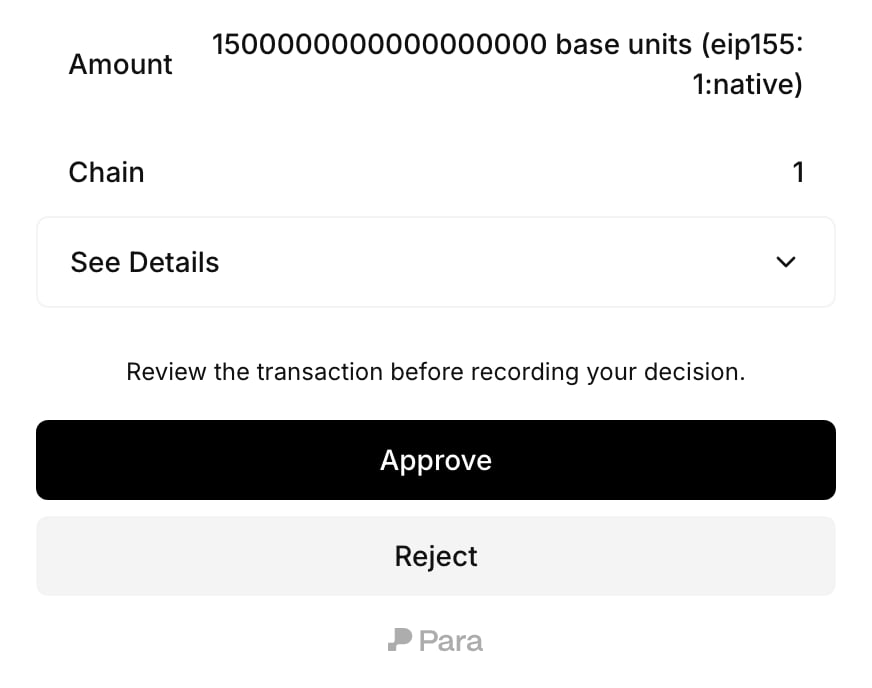
Safe treasury payments
Safe treasury payments
When Para wallets are owners of a Safe on an EVM network, rules can read each payment the Safe makes: its recipient, amount and asset, either the network’s native currency or an ERC-20 token. A policy can cap what the Safe sends over a time window and send larger payments to more approvers. The approval page shows the payment as it leaves the Safe.A Safe spending limit counts payments signed by every Para wallet in your app that owns the Safe, and a payment that several owners co-sign counts once.
Guardrails and Requests
Who owns the wallet decides what a policy means. The Developer Portal keeps the two kinds of policy on separate tabs, Guardrails and Requests.Guardrails
App-owned wallets can sign anything your backend asks them to. A Guardrail narrows that, for example so a bug cannot send more than a set amount or pay an address you have not listed. No user is involved, so Guardrails never show a consent screen.Requests
A Request is a delegation. The user consents once, and your app can then sign that kind of transaction for them without a prompt each time. The consent screen leads with the one-line description you wrote, so make it a complete summary of what the user allows. The rules themselves appear under See Details. The user can accept standing access or choose to approve each transaction manually, and can revoke access later. A Request has no deny rules, and anything it does not cover goes to the user for review. A Request rule that depends on a detail Para cannot read still denies the request, as described above. The consent screen appears the first time a matching request comes in, or earlier if your app opens it. If it appears during a request, the user still reviews that request, and standing access applies from the next one. Each change to a Request publishes a new version, and users consent again before the new version applies.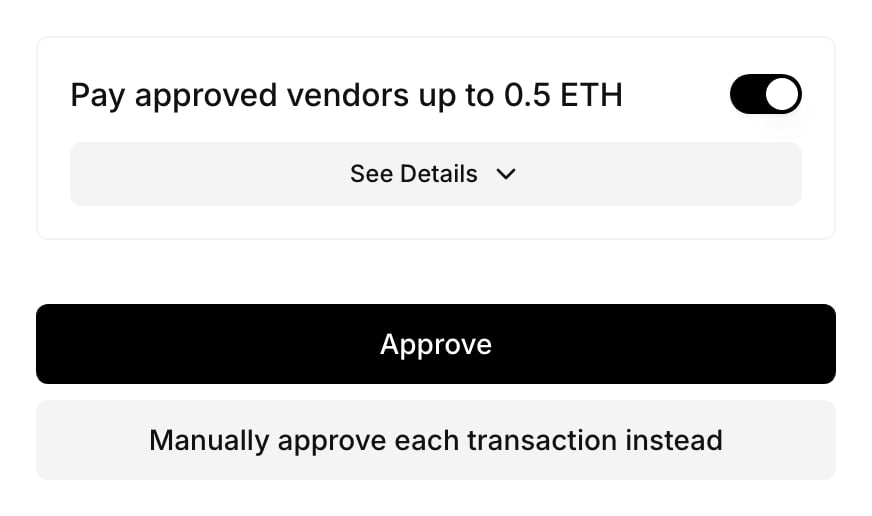
You will see the word delegation in two places. Policy JSON uses it as the type of a Request, and the Developer Portal’s review step labels a Request as Delegation.
Multiple policies and Para’s defaults
Most apps end up with more than one policy, such as a Guardrail for each network or a policy for each wallet type.Permissions supports EVM, Solana, Cosmos, Stellar and Sui wallets. Each policy targets one wallet type, so create a separate policy for each wallet type you want rules for. A policy covers every network of its wallet type unless you list specific networks.
- An API key with no active policy is not restricted. Draft and Off policies do not affect signing.
- Once any policy on an API key is active, Permissions applies to every wallet that signs with that key. A request that no rule decides follows the defaults in the table above: app-owned wallets sign, and user-owned wallets ask the user to review. This holds even when the key’s only active policies are Guardrails.
- Raw signatures follow the same defaults. A raw signature asks a wallet to sign arbitrary data instead of a transaction or message Para can decode. Para still recognizes the request as a raw signature, so it is not denied as malformed, but rules cannot check what the data says. Raw signatures carry no network, so only a policy that covers every network of its wallet type can change how they are handled.
What a policy looks like
Every policy has the same top-level shape, whether you build it with the Developer Portal forms or write it as JSON:- the selector says which wallets and networks the policy covers;
- each rule says which actions it governs, under which conditions, and with which effect;
- optional approval requirements say who must approve and in how many stages;
- optional adjustable parameters let each user set their own value for a limit, on the consent screen or in your app, with no minimum or maximum;
- optional approval settings let your backend or a manager you name change an approval requirement later, within the ranges or options you set.
Policy JSON reference
Facts and conditions
Approval requirements
Production
Para has a beta environment for building and testing, and a production environment for live traffic. In the Developer Portal, your beta key is labeled Development and your production key Production. Each key keeps its own policies, and nothing copies across on its own.1
Build and test on beta
Create and activate your policies on the Development key, then send test requests for every outcome you expect.
2
Request a production review
Open the Production key in the Developer Portal. While your Development key has an active policy and production is still waiting for review, a banner offers Request production review.
3
Para publishes to production
Para reviews your beta policy and applies it to the Production key. You can view production policies and their JSON in the Developer Portal, but you cannot change them there or with the CLI.