

raw_signature action. Raw signatures include sign-raw requests and message signing from wallets that cannot sign as EVM, such as Solana, Stellar, and Sui wallets. The Developer Portal forms cannot create this rule; use JSON authoring.
Permissions supports EVM, Solana, Cosmos, Stellar, and Sui wallets. The Developer Portal forms cover a subset of policy shapes; use JSON authoring or work with Para for other supported configurations. Each policy selects one wallet type and can narrow it to specific networks, and each rule names the actions it governs. Check the policy reference for the facts supported by each request.
Choose a policy type
Permissions separates two different wallet experiences:
Requests always require user consent. Guardrails do not show a consent request because the application owns the wallet.
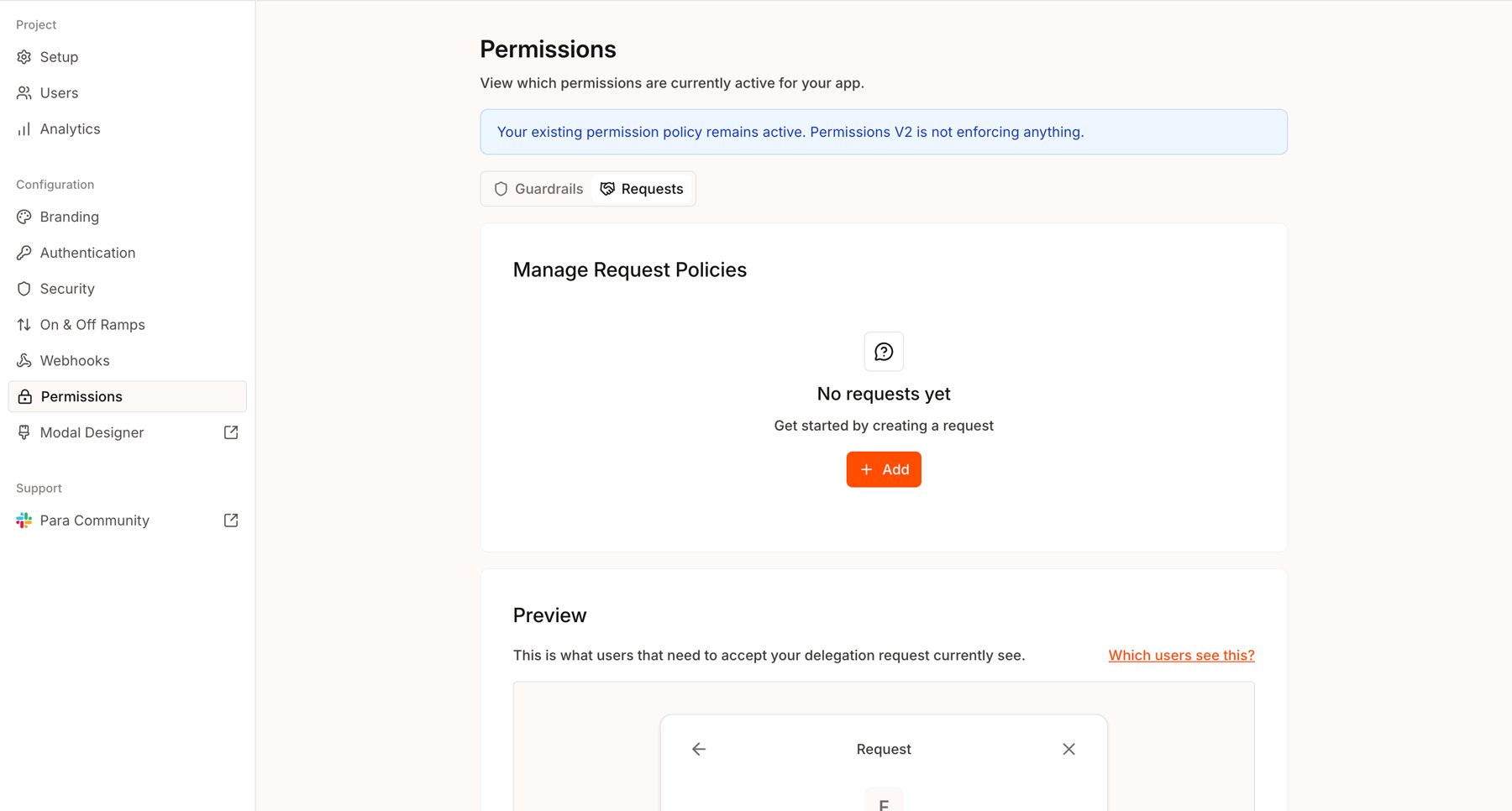
Configure a Development policy
Start with a Development API key. Policies created for one API key do not affect another key. To start from a common policy shape, see Guardrail templates and Request templates.1
Open Permissions
Select your project and Development API key in the Developer Portal, then open Permissions from the sidebar. Choose Guardrails or Requests based on the wallet ownership model above.
2
Describe the policy
Select Add. For a Request, enter the plain-language text users will see when deciding whether to grant access. Select one or more networks from a single wallet type and, if needed, an optional start and end time for the policy. Selecting a wallet type group, such as EVM or Solana, covers every network of that type. You can also select individual Solana and Sui networks, such as Mainnet or Devnet.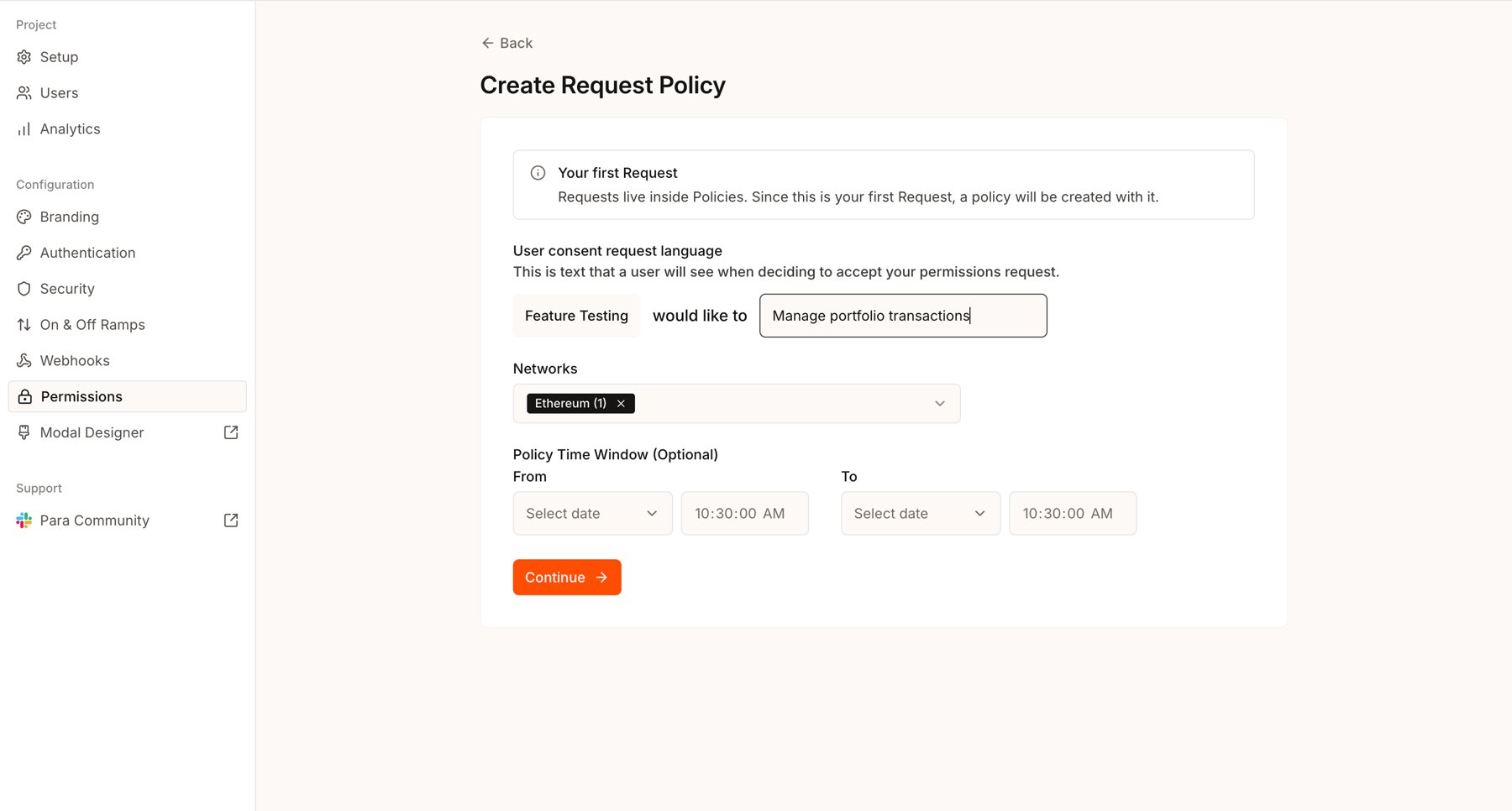
3
Define the transaction logic
Add the actions the app needs and narrow each action with an available condition. For example, allow native transfers on Ethereum up to a fixed amount, or limit a contract call to a particular function and argument.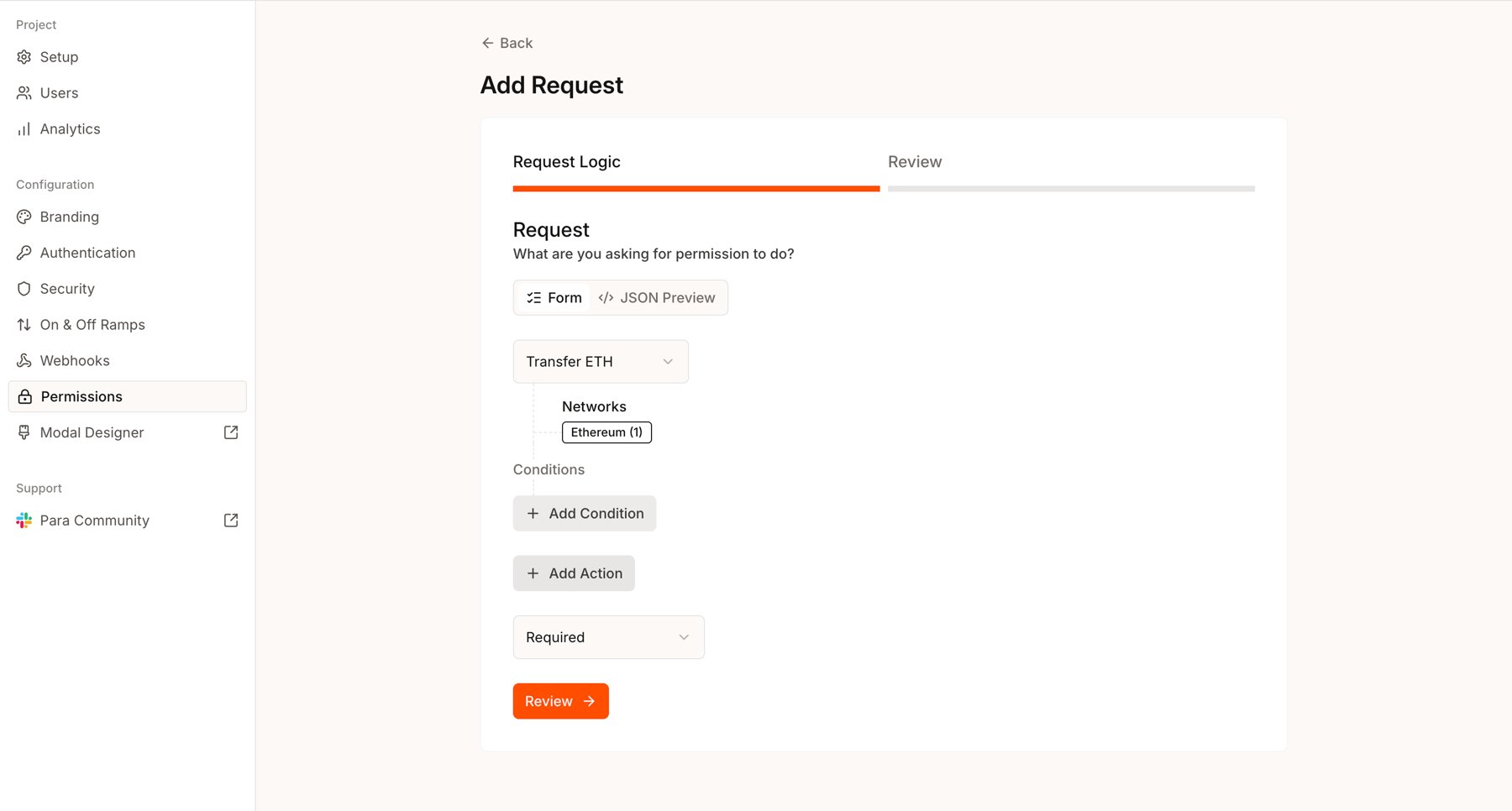
4
Review and save a draft
Select Review to inspect the server-normalized policy and any warning about broad access. Select Save Draft only when the summary matches your intent. A draft is inert and does not change signing behavior. If the policy overlaps active policies, Review lists them. All overlapping policies apply, and a block in any overlapping Guardrail wins.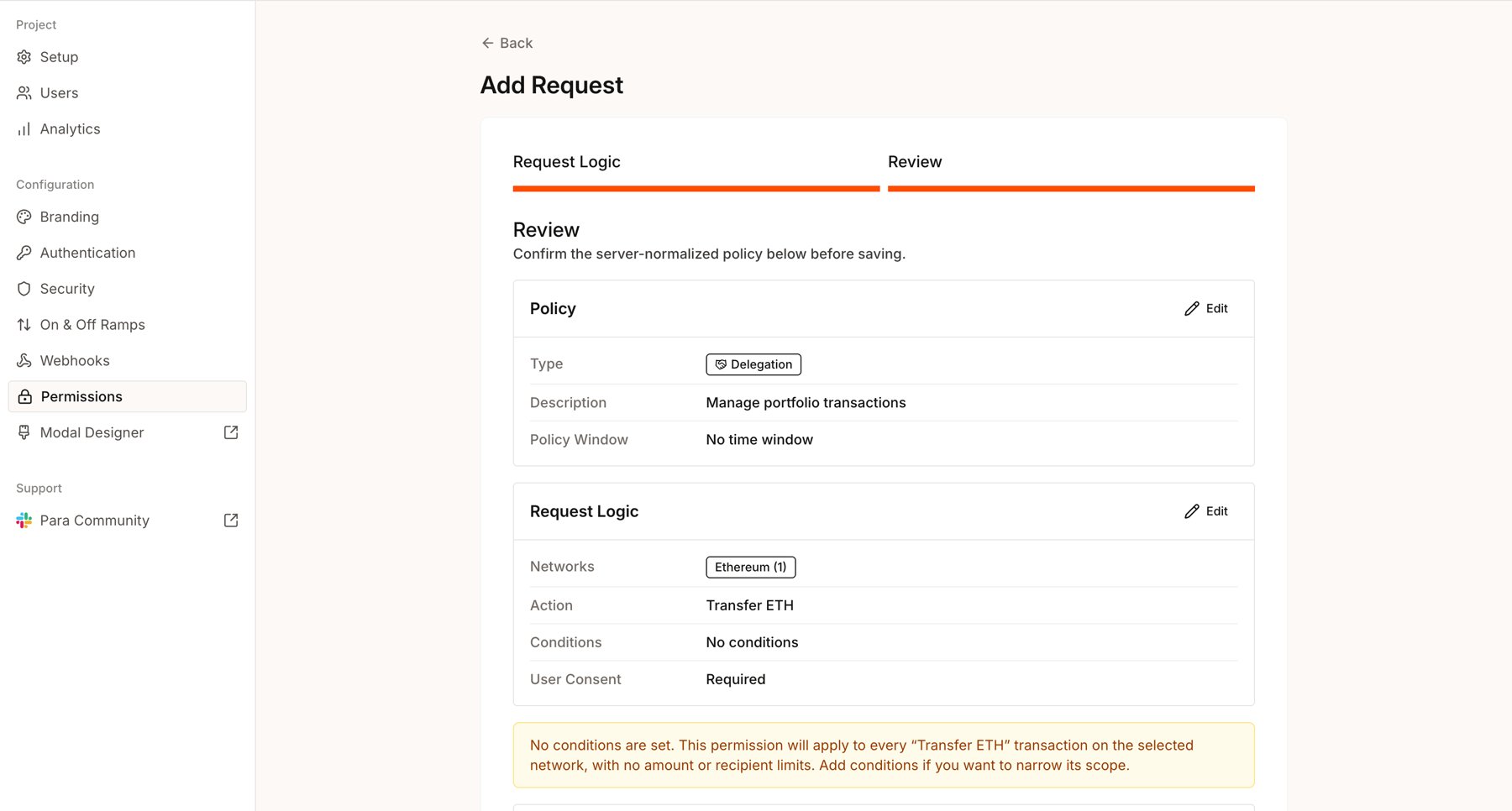
5
Activate and test
Activate the draft when you are ready to use it on the Development key. The first active policy automatically enables Permissions for that key. A policy affects signing only while it is active and within its time window. Test at least one transaction that should match and one that should not before requesting production review.
Actions and conditions
The current Portal flow supports these transaction actions for EVM networks:- Transfer ETH
- Transfer tokens
- Call a contract
- Execute a Safe transaction
- Deploy a contract
- Native transfer
- Token transfer (not available on Sui)
- Execution target
Spending limits cover native transfers on every wallet type and token transfers on EVM (ERC-20), Solana, Cosmos, and Stellar. Sui limits cover native transfers only. A token limit counts only the asset it names. Each network and asset has its own budget, so a limit of 1 ETH per day on Ethereum and Base allows 1 ETH per day on each network. Amounts Para cannot decode do not count toward a limit. Smart account user operations do not count toward EVM limits, except ERC-20 transfers sent through Para gas sponsorship.
The Portal covers common policy shapes. A Request action can combine up to 8 conditions, all of which must hold; a Guardrail action takes one condition. For nested logic such as
any groups, more conditions, raw signature rules, or multiple rules that work together, use JSON authoring with the CLI or contact Para for assistance.Selectors and versions
The policy type and complete network selection identify the policy you are editing. Network order does not matter, so Ethereum + Base is the same selector as Base + Ethereum. Base only is a different selector and creates an independent policy. Editing an existing selector creates the next version of that policy. Changes to an active policy replace the active version when saved, while changes to a draft remain in draft. Resolve the current draft by activating or discarding it before creating another draft.Production
Development and Production API keys are independent. Creating a Production key does not copy the Development policy, activate Permissions, or change the Production key’s existing signing behavior. After you have validated the active Development policy:- Create the Production API key.
- Open the Production key and select Request production review. This action appears when Development has an active policy and the Production key is still awaiting permissions setup.
- Para reviews the active Development policy and independently publishes the approved policy for the Production key.
- Verify the published Production policy in the Portal before sending production traffic.