

@getpara/react-sdk check and request consent to your Requests, and your signing code handles each outcome.
What a Request does
A Request is a policy your app asks each user to accept, so that the transactions it describes sign from that user’s wallet without a review prompt. Your users own their Para wallets. While Permissions is on, a transaction that no accepted Request covers opens a review in the Para Portal, where the user approves or rejects it. A Request moves a set of transactions you describe, such as small transfers to your contract, out of that review once the user agrees to it. Each Request rule has one of these effects:
A Request cannot deny anything. It can only let transactions through, or route them to approvers. Transactions that no Request covers still reach the user as a review.
Requests apply only to wallets your users own. Wallets your project owns, such as wallets created through the REST API, use Guardrails instead. See How permissions work.
Permissions supports EVM, Solana, Cosmos, Stellar and Sui wallets. Each policy targets one wallet type, so create a separate policy for each wallet type you want rules for. A policy covers every network of its wallet type unless you list specific networks.
Before you start
You need:- A Development API key. Policies are written and tested on Development keys, which use Para’s beta environment. Production keys are read-only in the Developer Portal.
- Signed-in users with Para wallets.
- For approval requirements, or values users can adjust: Para must enable these for your key. Until then, saving a Request that uses them fails with
permissions_v2_extension_unavailable.
How users accept a Request
Users answer a Request on a consent screen in the Para Portal. It appears in two places:- During signing: when your app signs a transaction that an active Request covers, and the user has not answered that Request or their answer expired, the review opens on the consent screen. Whatever the user chooses, the Portal then shows the current transaction for review.
- On its own: your app can open the consent screen for one Request at any time, for example during onboarding, with the URL from
getPolicyConsentUrl({ walletId, policyId }). After the user chooses, the Portal showsPermission updated. You can close this window.and closes.
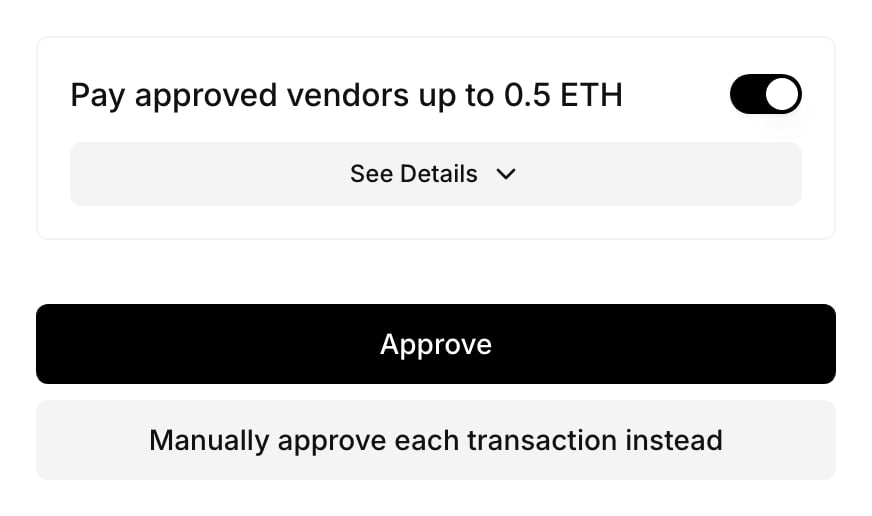
{appName} would like to, with your app’s name, followed by your Request’s description. See Details lists the networks and rules in plain language. If the Request has values users can adjust, such as a spending cap, they appear as fields under it.
The user then chooses one of these:
On the standalone screen, a user whose answer is still in effect also sees Revoke permission. During signing, the screen adds: “You will still review the current request. Standing access takes effect once that request is approved, and applies only to future matching requests.”
When users are asked again
A user’s answer is tied to the exact version of the Request and to the values they set. When you publish a new version of a Request, or the user saves new adjustable values, the answer no longer applies, and the user sees the same consent screen the next time a matching transaction needs review. The screen does not say that anything changed, so describe the change in your app if it matters to users. Each user’s answer has one of these statuses:Check and request consent
These hooks come from@getpara/react-sdk and work inside your ParaProvider once the user is signed in. useUserPolicyConsents({ walletId }) lists the active Requests for a wallet with the user’s answer to each, and useGetPolicyConsentUrl creates the link to the consent screen for one of them.
PendingRequests.tsx
useUserPolicyConsent(policyId, { walletId }).
You do not have to ask in advance. If a user signs a transaction that an unanswered Request covers, the review starts on the consent screen.
What happens when your app signs
Your app keeps using the signing methods it uses today. While Permissions is on, Para checks each request against the Requests that apply to the wallet, and against the user’s answer to each one. The signing call then ends in one of four ways:The Para client and server SDKs, including their viem, ethers and wagmi integrations, sign EIP-712 typed data and EIP-7702 authorizations as a message over their hash, so Para evaluates those requests as
sign_message. The sign_typed_data and sign_authorization actions, and the facts Para reads from typed data and authorizations, such as request.typedData.primaryType, apply only to the REST API’s sign-typed-data and sign-authorization routes, which the REST SDK calls.Signed without a prompt
The call returns{ signature }, as it would without Permissions. The user sees nothing.
User review
In the defaultmanaged review mode, the SDK opens the Para Portal review and waits for the user to decide. It waits at least 5 minutes, even when you pass a shorter timeoutMs.
If an active Request covers the transaction and the user has not answered it, or their answer expired, the review starts on the consent screen. The Portal then shows the transaction with Approve (Sign for a message) and Reject.
While Permissions is on, raw signatures follow the same defaults as other signing requests: an app-owned wallet signs them, and a user-owned wallet sends them to the user for review. Rules that name the
raw_signature action, and rules with "actions": "all", can change that. Raw signatures are sign-raw requests, messages from Solana, Stellar and Sui wallets, and REST sign-message requests from a Cosmos wallet that do not pass walletType: "EVM". The SDKs sign messages from Cosmos wallets as EVM sign_message requests. Raw signatures carry no network a selector can name, so only a policy without chainId governs them. A rule that names raw_signature can read only para.wallet.* facts. The Developer Portal forms cannot create one, so write it in policy JSON, with Edit JSON in the Developer Portal or with the CLI.transactionReviewMode: "handoff" in the client options, the SDK does not open or wait for the review. The signing call returns { pendingTransactionId, approvalCaseId?, transactionReviewUrl } right away, and your app shows the review URL. After the user approves, send the identical transaction again to get the signature. Wallet integrations that must return a signature, such as the viem, ethers and Solana signers, throw TransactionReviewRequired with the same transactionReviewUrl and pendingTransactionId instead.
Approval from other people
When the deciding rule has an approval requirement, Para opens an approval case for the transaction. The people the requirement names approve or reject it in the Para Portal. The user who asked for the signature cannot decide their own case, except when the requirement collects approval signatures. Inmanaged mode, the user’s review shows Waiting for required approvals. Refresh after an approver has decided. while the SDK waits:
In
handoff mode, the result includes the approvalCaseId. In managed mode, list the user’s cases with listInitiatedApprovalCases() and pick the one whose request.id equals the pendingTransactionId. A case’s status is pending, completed, rejected, expired, invalidated or cancelled, and the user can cancel the case with cancelApprovalCase(caseId).
Only a pending case can be cancelled. The case ends with status cancelled and terminalReason case_cancelled. When a pending transaction from a user’s wallet is waiting on the case, Para discards it, so that request never signs. A request that should still go ahead needs a new attempt, which opens a new case.
To continue after the wait has ended, sign the identical transaction again with resumeApprovalCaseId set to the case ID:
An approval case that has not been used to sign is invalidated when the active policies that apply to its request change, for example when a policy is replaced, activated or turned off. An invalidated case cannot complete, so start a new request to open a new case.
Denied
A denial comes from a rule Para applies to every app, from a spending limit that runs out as Para reserves the spend, or from resuming an approval case that an approver rejected. When a policy denies the request, the signing call rejects instead of opening a review. Para’s refusal hascode: "POLICY_DENIED" and status: 403. When a rule decided the denial, data.deniedBy names it with the same { policyId, ruleId, reason } entries the REST API returns. A spending limit reached while Para reserved the spend reports windowed-spend-limit-exceeded.
The React Native SDK and the server SDK reject with an error object that carries this code, status and data. The object is not always an Error instance, so check its code property rather than its class.
Handle each outcome
Sign withuseSignTransaction or useSignMessage as you do today, and map each result to a state your interface can show. Pass resumeApprovalCaseId when you sign again to continue an approval case.
useSignWithPermissions.ts
stopped means the review ended without a signature: the user rejected it, the user cancelled the approval case, an approver rejected the approval case, or the SDK could not read the review’s status. A result without a signature only comes back in handoff mode; in the default mode, an unfinished review arrives as TransactionReviewTimeout.
approval-ended matches the POLICY_REVIEW_REQUIRED refusal Para returns when you resume a case that can no longer sign. That happens when the case expired, was invalidated or was cancelled. It also happens when a completed case was already used, or when its approval expired before use.
To show where an approval stands, find the case for the transaction with useInitiatedApprovalCases(), and let the user cancel it with useCancelApprovalCase(). Cancelling refreshes the list.
ApprovalStatus.tsx
useInitiatedApprovalCases() returns the user’s 50 most recent cases. To look further back, pass { beforeCaseId: data.nextBeforeCaseId }. When status is completed, call the hook’s function again with the same transaction and approvalCase.caseId as resumeApprovalCaseId to get the signature.
Add a Request
Write the Request on a Development key and test it with real users on beta. When it behaves as intended, request a production review. Start in the Developer Portal, which also previews the consent screen, and use JSON for rules the forms cannot express.Users of your production app see no consent screen and no change in review until Para publishes a reviewed Request to your Production key. Requests you activate on a Development key affect beta only.